

You click "Go Live" and a few seconds later people on the other side of the world are watching you. It feels like magic. It isn't.
There's a short chain of software doing very specific jobs behind that button. And when you understand that chain, live streaming gets a lot less scary.
In this post I'll explain what live streaming software actually does, in plain English. Encoders, RTMP, stream keys, bitrate, the whole lot. If you already know the basics and just want to compare apps, we've ranked the best software to live stream for content creators in a separate guide.
This one is about how it all works.
What Is Live Streaming Software?
Live streaming software is any program that takes video and audio, packages it for the internet and pushes it to a platform like YouTube, Facebook or Twitch while it plays.
That's it.
Some apps also let you add overlays, switch between cameras, bring on guests or play pre-recorded videos. But underneath all the buttons, every one of them does the same core job. Take a picture and sound, squeeze them down, and send them somewhere.
The Journey of a Live Stream
Here's what happens between your camera and your viewer's screen.

1. Capture. A camera, a microphone, your screen or a video file provides the raw picture and sound.
2. Encode. The software compresses that raw footage into a much smaller stream. Raw video is enormous. Without compression, almost nobody's internet could carry it.
3. Send. The encoded stream travels to the platform's servers, usually over a protocol called RTMP.
4. Process. The platform receives your stream and prepares copies at different qualities, so someone on a slow phone connection and someone on fast home broadband can both watch.
5. Watch. Viewers press play and get the version that suits their connection.
You only control the first three steps. The platform handles the rest.
Encoders, the Heart of Every Stream
When people say "streaming software", they very often mean an encoder.
An encoder is the part that compresses video in real time. It has to be fast, because it's working on every frame as it arrives. If it falls behind, you get dropped frames and choppy video.
There are a few kinds.
Software encoders run on your computer's processor. They're flexible, but they can make an older laptop work very hard.
Hardware encoders use a dedicated chip, often on your graphics card, or a separate box built only for streaming. They take the load off your main processor.
Browser-based studios do the capture in your browser and handle much of the heavy lifting on their own servers.
Cloud streaming tools skip your computer almost entirely. You upload a finished video, and their servers do the encoding and sending.
That last type matters more than most beginners realise. If your computer isn't involved, your computer can't crash your stream.
RTMP and Stream Keys, Explained
RTMP stands for Real-Time Messaging Protocol. Think of it as the delivery lane your stream drives down to reach the platform.
Nearly every major platform accepts it. That's why one piece of software can stream to YouTube, Facebook, Twitch and others without needing a special version for each.
To use RTMP you need two things from the platform.
- A server URL. This is the address your stream gets sent to.
- A stream key. This is a private code that tells the platform the stream belongs to your account.
Treat your stream key like a password. Anyone who has it can broadcast to your channel.
Most beginner-friendly tools now connect to your accounts directly, so you never have to copy a key by hand. But it's still useful to know what's happening when you click "connect".
Bitrate, Resolution and Frame Rate
These three settings decide how your stream looks and how much internet it needs.
Resolution is the size of the picture, like 720p or 1080p.
Frame rate is how many pictures per second you send. 30 is standard. 60 looks smoother for games and fast motion.
Bitrate is how much data per second the stream uses. Higher bitrate means more detail, but it also needs a faster upload connection.
Here's the trap. Bitrate depends on your upload speed, not your download speed. Many home connections download quickly and upload slowly.
So what should you pick? Start with the recommended settings your platform publishes for your resolution. Run a speed test. Make sure your upload speed has plenty of room above the bitrate you choose, because connections dip. If things stutter, step down to 720p before you do anything else.
Simple beats ambitious every time.
The Main Types of Live Streaming Software
Once you see the chain, the different categories of apps make more sense. Each one handles a different part of it.
- Production studios for your desktop, built for switching scenes, adding graphics and mixing several sources. Powerful, with a learning curve.
- Browser studios made for interviews and guests. Easy to start and light on setup.
- Multistreaming services that take one stream and copy it to several platforms at once.
- Pre-recorded and cloud streaming tools that broadcast finished videos as live, on a schedule or around the clock.
Which one do you need? That depends on whether you want to be on camera in real time, or whether you'd rather prepare your content first.
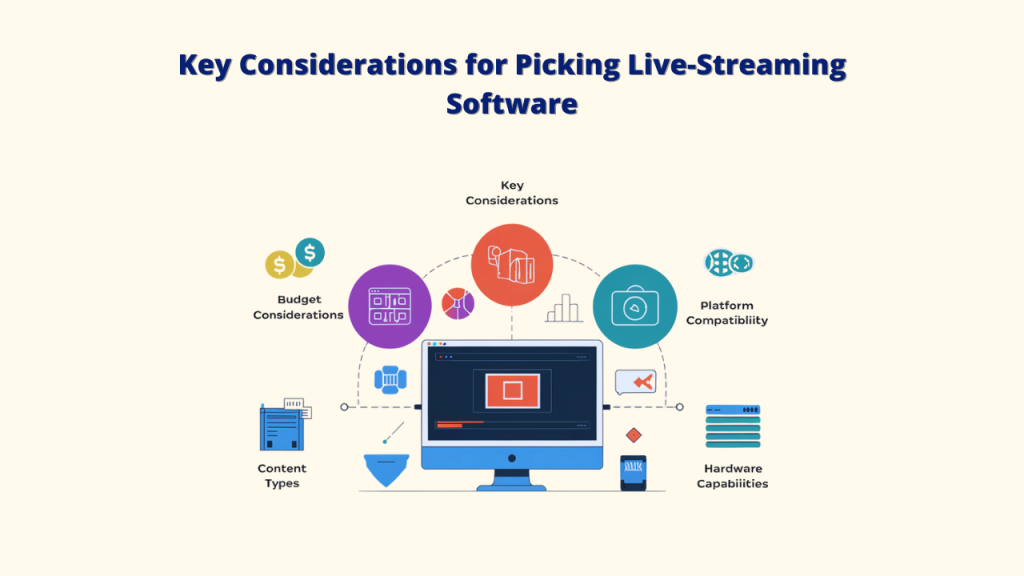
What Your Computer Actually Has to Do
This is where a lot of beginners get stuck.
With a desktop encoder, your computer is doing the capture, the compression and the sending, all at once, for the whole length of the stream. That's a lot to ask of an ordinary laptop. Fans spin up. Other apps slow down. One crash ends the broadcast.
With a cloud tool, your computer's job is just to upload a file and press schedule. You could close the laptop afterwards.
Neither is better in every case. If you're gaming live or taking calls from viewers, you need real-time software. If you're streaming a webinar, a tutorial or a music channel you've already made, the cloud route is far easier on your hardware and your nerves.
Why Streams Go Wrong
Almost every live streaming problem traces back to one link in the chain.

- Choppy video or dropped frames. Usually not enough upload speed, or an encoder that can't keep up.
- Blurry picture. Bitrate set too low for the resolution.
- Audio out of sync. Often a capture device delay that needs an offset in your software.
- "Stream not received" errors. Usually a wrong or expired stream key.
- Stream stops halfway. Your computer slept, crashed or lost Wi-Fi.
- Nobody shows up. Not a software problem at all. That's about timing and promotion.
Fix the chain one link at a time and most issues disappear.
How Livecaster 24x7 Handles the Technical Side
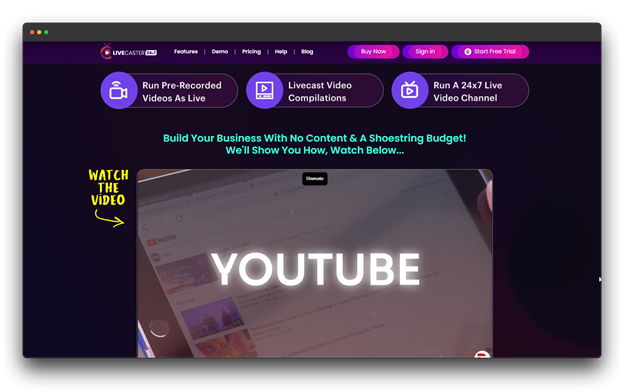
This is the part of the chain we decided to simplify with Livecaster 24x7.
Livecaster is a cloud tool for going live with pre-recorded videos. You upload your video, or a collection of videos, choose where it should go, and either go live right away or schedule it for later. It uses RTMP, so it works with YouTube, Facebook, Instagram, TikTok, Twitch and other platforms that accept it, and you can run multiple streams on multiple platforms at the same time.
You can also build streams that loop, so a channel stays live 24 hours a day. Think meditation music, tutorials or news. And you can update a stream's content while it's still live.
Because it streams from the cloud, your own computer doesn't have to stay on.
It costs $6.99 a month or $67 a year.
If you need a full production studio with scene switching and live guests, a desktop encoder is still the right tool. We compare those in our roundup of the best software to live stream.
Final Thoughts
Live streaming software isn't one mysterious thing. It's capture, encoding and delivery, with the platform taking over from there.
Once you know which link does what, choosing a tool gets easier. So does fixing a stream that's misbehaving.
Start with the simplest setup that does the job. Check your upload speed. Guard your stream key. And if you'd rather not be tied to your computer for the whole broadcast, let the cloud handle it.
When you're ready to pick an app, our guide to the 8 essential tools for content creators is a good next stop.
FAQs About Live Streaming Software
Do I need special hardware to live stream?
Not to get started. A computer or phone and a stable internet connection are enough. Dedicated cameras, microphones and hardware encoders improve quality, but they're upgrades, not requirements.
Is RTMP the only way to stream?
No. Some platforms and tools use newer protocols too. But RTMP is still the most widely supported, which is why so much software is built around it.
What upload speed do I need?
It depends on your resolution and bitrate. Check your platform's recommended settings, then make sure your upload speed sits comfortably above that bitrate so small dips don't break the stream.
Can I live stream without my computer running?
Yes, with a cloud streaming tool. You upload the video once and the tool's servers handle the broadcast, so your computer can be switched off.